Set Defaults and Manage Confirmation Dialogs for Favorite Matters Drop Folders in Microsoft Outlook
Related Topics
- Configuring Worldox Drop Folders for Microsoft Outlook
- Copy or Move Email
- Email a File
- Email Heuristics Columns in Microsoft Outlook
- Email Tab Toolbar
- Microsoft Outlook Drop Folders Now Automatically Correlate with Favorite Matters
- Move Messages from the Worldox Email Tab
- Open a Moved Message with or without Attachments
- Open an Email Link in a Worldox File List (.wdl)
- Profile an Email Message Attachment
- The Worldox Email Tab
Automatic Favorite Matters drop folders in Microsoft Outlook only contain the folder-based fields, unlike the Quick Profile-based Drop Folders which contain fully validated fields. The rest of the fields must be filled in by the Email default Quick Profile for the selected Cabinet. You must use an email Cabinet default Quick Profile to fill in any non-folder and non-user based fields.
You can set these Quick Profiles through Worldox when you Copy or Move emails. Worldox managers can set a global default while users can set personal overrides.
To set the default for Favorite Matters drop folders in Microsoft Outlook, do the following:
In Microsoft Outlook, select an email message.
On the Worldox tab, click Copy or Move.

1. In the Copy Email to Worldox or Move Email to Worldox dialog, click the Quick Profiles tab.
2. Click the Add  button to add a new Quick Profile.
Fill out any fields that are not folder or user-based since those fields will be filled in automatically. In the following example, only the DocType (EMAIL) is filled in by default.
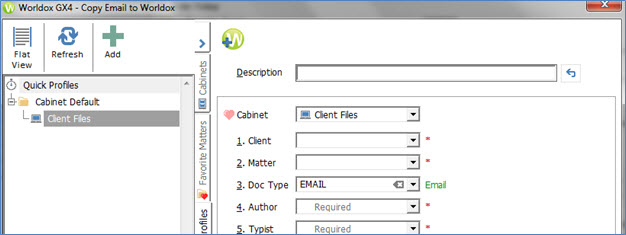
After you have completed filling in the fields, click OK. The Save Quick Profile dialog appears. Save the Quick Profile as the Cabinet Default. This will then be used for any automatic drop folder based on the Cabinet.

Now when you drag an email to an automatic drop folder from that Cabinet, you will see the Drop Move or Drop Copy Confirmation dialog. By default, you see the Confirmation dialog for all automatic drop folders.
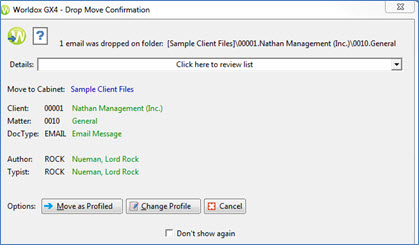
You can select one of the following options:
Copy as Profiled or Move as Profiled to accept the defaults.
Change Profile to change the cabinet fields.
Cancel to cancel the copy or move action.
If you are satisfied with the default fields and do not want to be prompted for this Drop Copy or Move Confirmation dialog in the future, you can check the Don’t show again option. If you select this, emails will be copied or moved without you having to confirm the process each time. Each drop folder is controlled independently.
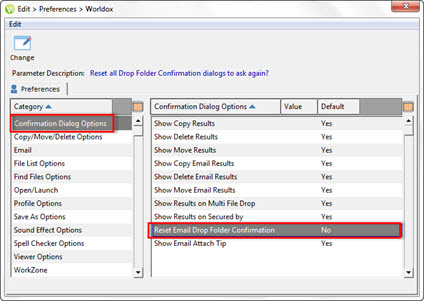
Note: If you initially select the Don’t show again option and you later decide that you would like to see the Drop Copy or Move Confirmation dialog again, you can enable the reset option from the Edit > Preferences > Worldox dialog. Select the Confirmation Dialog Options category. For the preference named Reset Email Drop Folder Confirmation, select Yes. This will reset ALL drop folder confirmations to be on again. This option affects all drop folders.