Delete a Category
If you want to delete a category because you no longer have any files you want to associate it to, do the following:
In the Worldox file list, right-click a category in the Category column and select Add/Edit CategoriesCategories (formerly known as Libraries) are unique to Worldox. Categories are "virtual containers" – places to organize files for any purpose that suits you. They collect files in the virtual sense by creating connections between documents without moving or copying those documents. Categories are optional, but if you have them turned on you can create categories on the fly when saving or copying files. Use categories to set up groups of related documents within a folder. For example, you can use categories to group documents by status. You could create categories for drafts, review documents, approved documents, and other categories, within each client/matter folder. The Categories feature also makes it possible for users to quickly identify files in a list in a visual way. You can use color icons and text-based descriptions to tag and discover related files.. The Edit > Assign to Categories dialog appears.
Click on the tab (e.g., Personal or Public) that contains the Category you want to remove from the list of available Categories.
Select the Category and click Delete.
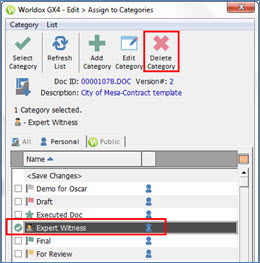
If you delete a Category that is assigned to files, the Category will be deleted from the list of available Categories and also from the files that it has been assigned to.