Removing a File from Favorites
Related Topics
When you remove a file from Favorite Files, that file will no longer appear under Favorite Matters in your Microsoft Outlook drop folder or in the desktop version of Worldox. As a result of Follow Me Favorites technology, it will also be removed from any other versions of Worldox you use on an iPad, iPhone, Worldox/Web 2.0 or a multi-function printer (MFP) such as the Canon Connector.
To remove a file from Favorite Matters, do the following:
Open the Favorites list which contains the file or files you want to remove from that list. You can select List > All Favorites or List > Selected Favorites.
Select the file(s) to remove in the file list or tile view, and then do one of the following.
-
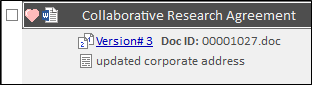
Click the red heart icon next to a file that you want to remove from Favorites lists. The heart icon becomes greyed-out once it is no longer a favorite.
-
Or, right-click a red heart icon next to a file you want to remove from Favorites lists and select Remove from my Favorites.

-
Or, select Favorite Files > Remove from the Edit menu. If multiple files are selected, Worldox asks you to confirm your choice in the Clarify Selection dialog.
In the following example, the file that was removed from Favorites is located under Client Files\00060\0140.

Click Favorite Matters in the Navigation Panel and then navigate to Client Files\00060\0140.

Double-click the 0140 folder to view files for that matter. The heart icon next to the file name is inactive to indicate that the file is no longer a favorite.

If you select List > All Favorites, the file will no longer be displayed there.