
• As the PDF conversion starts
• Navigating between applications
With one or more documents selected on a Worldox worklist, right-click anywhere on the list. PDF-generation choices are available on the Send To right-click submenu. Here is a sample, showing the pdfDocs choices a Productivity Suite user with that module activated would see.
What happens after a menu item is selected depends not only on the item chosen, but also on the number of files selected on a worklist before that menu choice. (See Converting multiple files to PDF for details.)
With one of more files selected, right click. Select Send To on the right-click menu, then select one of these options on the cascading menu:
• Select Create as New Document to create and save the PDF as a new document in Worldox.
• Select Create as Related Document to create and save the PDF as a document related to another file in Worldox.
• Select Email as PDF to create and email the PDF.
• Select Load into Project to load selected files into the pdfDocs window.
Tip: To change settings in the pdfDocs window, choose Load Into Project. That's the only option which opens the pdfDocs window before outputting files as PDFs. |
• Select Open with pdfDocs compareDocs to compare the selected files instead. This choice opens the pdfDocs compareDocs window and loads the selected documents into comparison fields.
Note: For more on the compareDocs module the Productivity Suite, see compareDocs tools.

Two inactive choices appear on the Send To right-click menu (sample here):
• Apply Digital Signature
• OCR to Word
These options can be selected, but do not work; they are de-activated in the Productivity Suite version of this DocsCorp product. As a Worldox customer, you can upgrade to the full-feature version of pdfDocs at a favorable, discount rate.
PDF-generation takes place in a separate DocsCorp application. Depending on which option you select in the Send To right-click menu (sample here), you may or may not see that application. You will see these interim screens:
• With the Load into Project menu choice selected, you see the DocsCorp logo, before the pdfDocs window appears:
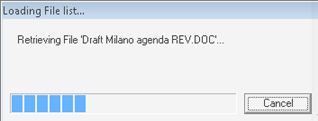
• With any other active pdfDocs choice selected on the Send To menu, you see this progress window as the PDF is generated:
Depending on which PDF-generation choice is chosen, you may find yourself toggling between Worldox and the pdfDocs application.
When the pdfDocs window is open (with Load into Project selected from the right-click menu), you are in a separate DocsCorp application linked to Worldox. To toggle back and forth, use these taskbar buttons:
