There may be times when you find yourself profiling documents for which there are no appropriate code or value choices yet in key profile fields. That most often happens with Client or Matter fields.
Profiling documents in Worldox not only tags and identifies them for easy retrieval; it also locates and stores files in specific folders. Profiling depends on accurate, up-to-date identifiers. At many sites, Client and Matter codes are downloaded into Worldox at regular intervals from the billing system. At others they are entered manually by designated managers or administrators.
But there is always an exception - the case where you start receiving files for a client or matter/project that has not yet been identified by code in Worldox. Deferring copy, save, save as or move operations until codes are available is seldom an option. And force-fitting documents into the wrong profile categories can lead to big trouble later.
If profiling cannot wait until the right codes are available, "interim profiling" is the right way to work. This simply means creating new, placeholder Client/Matter identifiers so that documents can be profiled immediately, then going back later and re-profiling when the correct codes become available.
There are two interim methods:
• New/New involves creating NEW codes for Client and/or Matter - for whichever key profile identifiers are pending. If you have one or only a few Worldox users at your site, this method will work just fine.
• Firm/User is the better way, as this creates specific placeholder identifiers for interim profiling. There is much less chance for confusion later when going back to re-profile documents, no matter how many different users profile documents this way.
BEST PRACTICE: To interim profile a document:
Start an action which will result in Worldox interrupting with profile dialogs. Examples would be selecting File > Save As from a Word pull-down menu, or perhaps even just opening a file in a Legacy documents profile group.
Note: Here is more on the basics of profiling - including which actions can result in profile dialogs appearing automatically.
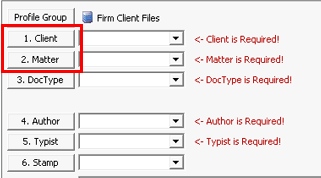
When the profiling dialog opens, open the field table selection dialog(s) for the field(s) you know have no matching codes yet. Here is a typical profiling dialog, showing the fields for which you do not as yet have the correct codes for the file in question:
Click the named button for the field you need to interim profile. That opens the associated field table dialog.
In that field table dialog ... you already
know the code you need is not on the list, so an interim code
has to be created. Click Add  in the
toolbar to add the code. That opens the Field
> Add dialog for that field. Here is the Field
> Add Client dialog:
in the
toolbar to add the code. That opens the Field
> Add dialog for that field. Here is the Field
> Add Client dialog:
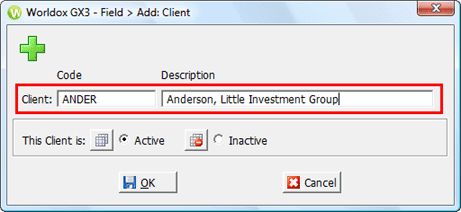
Note: Please be sure to write down any interim codes/descriptions for later reference.
Click OK to save the new code and description. Then complete the profile for this document, creating additional placeholder codes as needed.
When correct Client/Matter codes become available for these documents, search for them in Worldox, using the interim values created earlier.
Move each found document, re-profiling with the correct codes.
