
The Worldox for iPhone app is integrated with Microsoft OneDrive, an online file backup and synchronization tool that is available on the web and as an iPhone app. You can easily access any files or images you have stored in OneDrive directly from Worldox for iPhone.
From the Worldox main screen, select OneDrive. If you are using OneDrive for the first time during this iPhone session, you may be prompted to log in.
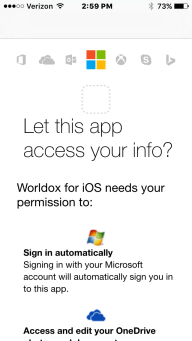
A screen may ask you to confirm that the Worldox for iPhone app is allowed to access your files on OneDrive. Select Yes.
From the Worldox main screen, select OneDrive again to access folders that contain your OneDrive files.

You can click a folder to view the OneDrive files contained within it.
Click the
iPhone Share  icon to view the menu options.
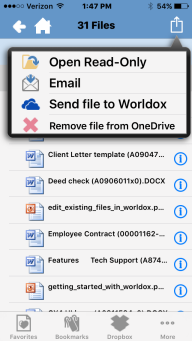
Select one of the following:
Open Read-Only to download a read-only to download a read-only copy of the original file, which then remains unchanged in Worldox. If you select this, you will see a list of applications on your iPhone which can open or accept documents. Select an application to open the downloaded file in read-only mode.
Email to attach the file to an email message.
Send file to Worldox to upload the file from OneDrive and save it into Worldox.
Remove file from OneDrive to delete the file from that OneDrive folder.
You can also tap a file to select it
and then tap the Information  icon to view the Details screen.
