 icon
at the top right of the window.
icon
at the top right of the window.If you have a file sharing or hosting application such as Google Drive, OneDrive, Citrix ShareFile or Dropbox installed, you can select the Import Document option to import a document from one of those apps into Worldox. For example, you can use the Send to iCloud Checked Out feature as described in Checking out and downloading files, then launch the file in Word, change it and then check it back in using the Import Document option.
Notes:
The first time you access a third party app (for example, Dropbox) during a Worldox session, you may be asked to log in. The login procedure used depends on whether you have the Dropbox app installed on your device.
If you want to make edits to a file, you should use an editor on your device instead of one of the file sharing or file storage apps. They sometimes simply copy a file and do not import the file that you changed
Locate the file to download using Quick Access, Find, Direct Access, Cabinets, Bookmarks, Favorites, Favorite Matters or Workspaces.
Tap a file name in the list to highlight it.
Touch the
Share icon
at the top right of the window.
Select the Send to iCloud Checked Out option.


A list of iCloud apps that are installed on your device appears. Choose an app (for example, Google Drive, OneDrive or Drobpox). The appropriate app is launched so you can Save or Upload the file to it. A green check mark icon appears next to the file name.


In the Worldox for iPad iPhone main screen, select Import Document.
The upper left corner displays a list of any sharing apps installed on your device.


When the file sharing app is launched, select the name of the file you checked out.


Worldox searches for the file. If the file is found, you will be prompted to check it in. Select one of the following options:
As new version to save the file as a new version. If you select this, the version number is updated for the file in the file list.

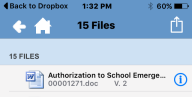
Overwrite original to save the file in Worldox with any changes you made.
Discard and revert to original to save the file in Worldox without any changes you made to the original file in another app. As Worldox discards or uploads the opened file, the green check disappears from the original file listing on the file list.
Note: If the file is not found, a message says it will not be checked in. The app you checked the file out to may have changed the file name's extension. You are then prompted to upload it as a new file. See Uploading and profiling a document for details.


