Add Files to Favorites
Related Topics
Select the file(s) to add in the right-side file list or tile view, and then do one of the following.
Click the deactivated heart  icon next to a file you would like to select as a favorite.
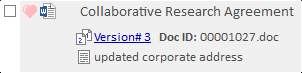
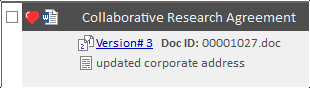
The heart icon turns red to indicate that it is now a favorite.
Or, right-click with the file(s) highlighted and select Add to Favorites from the right-click menu.

Or, select Favorite Files > Add from the Edit menu. If multiple files are selected, Worldox asks you to confirm your choice in the Clarify Selection dialog.
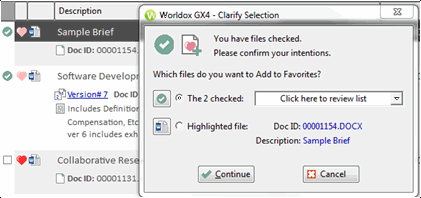
The heart icon next to the file turns red once it becomes a favorite.